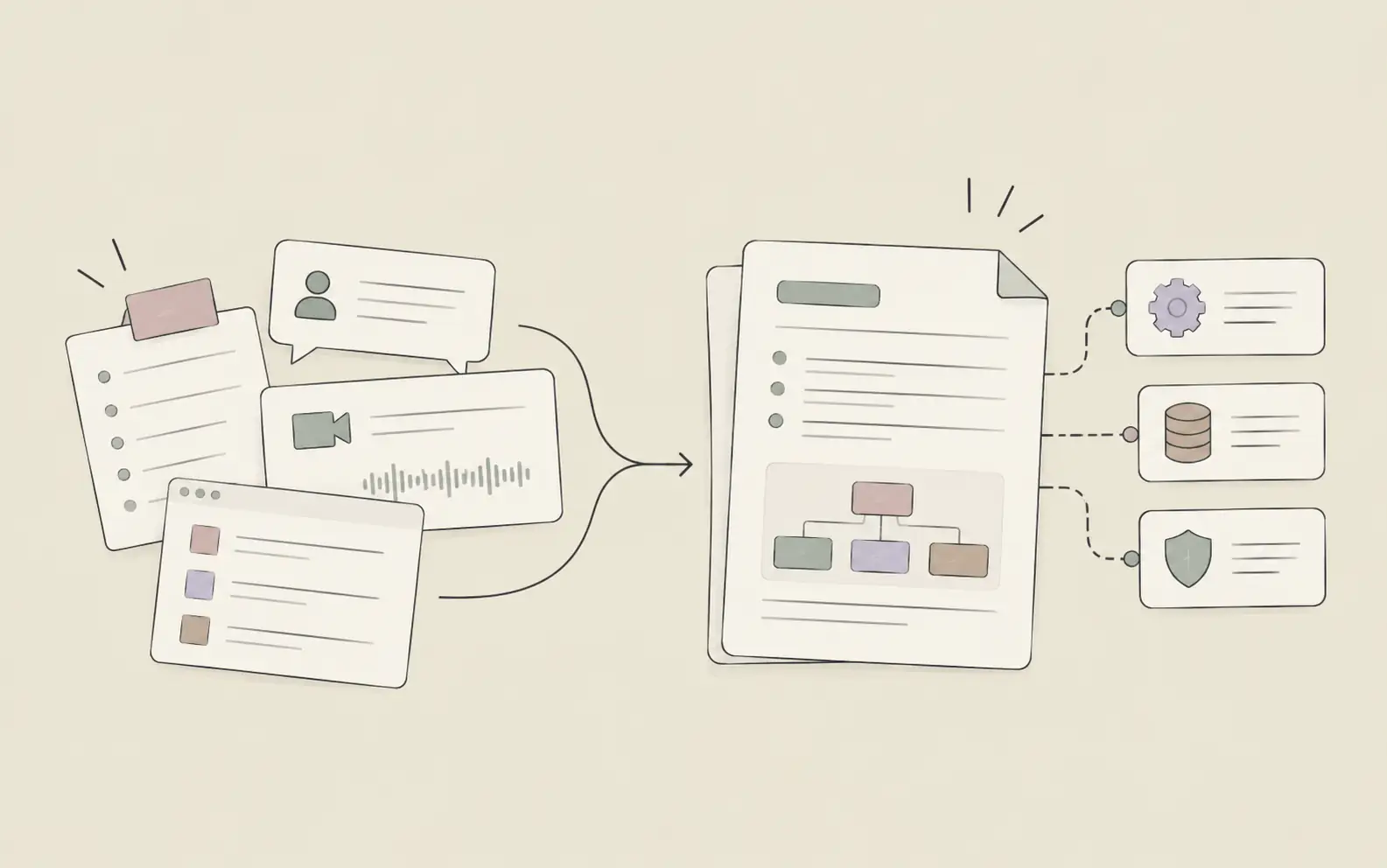
Markdown is a drafting format — it’s designed to be converted, not shared. With AI, the barrier of writing HTML code is gone. This guide walks through 5 steps to convert text to HTML with AI: from raw content to a styled, reusable page that reflects your personal aesthetic rather than a generic template.
What You’ll Need
- A Noumi account with a Project set up for your content work
- Your raw material — notes, bullet points, existing Markdown, or a transcript
- A style reference if you have one: a URL you like the look of, a screenshot, or a description of the aesthetic you’re after
- Optionally: an existing CSS snippet or color palette you want to match
How to Convert Text to HTML with AI: 5 Steps
Step 1: Decide What You’re Actually Building
HTML can serve very different purposes, and the format that works for a slide deck looks nothing like the one that works for a portfolio or a newsletter. Starting without a clear use case is the most common reason AI-generated HTML ends up generic: the tool defaults to a bland single-column layout because no one told it otherwise.
Before writing a word, decide what the output needs to do. A presentation for a quarterly review needs section-based scrolling, large typography, and strong visual contrast. A personal website needs navigation, a hero section, and consistent spacing across content blocks. A long-form article needs readable line width, anchored headings, and visual breathing room. These aren’t minor stylistic choices — they determine the structure Noumi builds from the ground up.
Try this with Noumi
“I want to convert this into an HTML page. Format: a single-page presentation — scroll-based, section by section, with a dark background. Each major point gets its own full-width section with large type. Start from this outline: [paste your content].”
Tip: If you’re not sure what format you want, describe the occasion instead. “This is going to be shared in a client email” or “This will live on my personal domain” gives Noumi enough context to make a sensible default choice.
Step 2: Give Noumi Your Content and a Style Anchor
The quality of your HTML output scales directly with the richness of what you give Noumi to work from. A rough outline, a bullet-point draft, and a single style reference — a screenshot of a page whose aesthetic you like, or even a description like “clean, editorial, lots of white space, Inter font” — will consistently produce better results than either polished copy alone or a vague prompt like “make it look good.”
Upload any reference material directly to your project workspace before you start. If you have a screenshot of a page design you admire, add it. If there’s an existing HTML snippet you want Noumi to match in spirit, include that too. The more specific the style input, the fewer revision rounds you’ll need. If you’ve already stored a brand color palette or a past HTML file you liked in your workspace, Noumi will find and reference it automatically rather than guessing.
Try this with Noumi
“Here’s my draft content on [topic]. I’ve also attached a screenshot of a design I like — editorial style, cream background, serif headings, generous padding. Build an HTML page from my draft that matches the visual weight of the reference. Save the file as [filename].html.”
Tip: You don’t need polished copy before generating HTML. A rough outline with the key points is enough to produce a first draft worth reviewing.
Step 3: Review and Direct the First Draft
The first HTML draft is a starting point, not a final product. Review it as you would review a layout from a designer: not for grammar or content, but for structure, hierarchy, and visual flow. Is the opening section making the right first impression? Does the spacing between sections feel balanced? Does the most important information land at the appropriate visual weight?
Give revision instructions in plain language, not code. You don’t need to specify CSS properties — describe what you want the result to look and feel like. Noumi handles the implementation. Each round of revisions produces a new version of the file, and version rollback means you can always return to a previous state if a revision doesn’t land the way you expected.
Try this with Noumi
“The headline font is too small — it should dominate the first section. The body text feels cramped; increase the line height and add more padding between sections. The metrics section should be a 3-column grid, not a list. Keep everything else.”
Example output adjustments Noumi might apply:
- Headline size scaled to 4rem with tighter letter-spacing
- Body line-height increased to 1.75, section padding doubled
- Metrics section converted to CSS grid with 3 equal columns
- Previous version saved automatically for rollback
Step 4: Save Your Style as a Reusable Template
Once you have a version that looks and feels right, extract its design conventions into a reusable reference stored in your project workspace. This is the step most people skip — and it’s why their second HTML page looks as generic as the first one. By saving your style preferences explicitly, you give every future HTML task a foundation to build on instead of starting from scratch.
Ask Noumi to extract the key design decisions from your final page into a brief style guide: the color values you used, the font stack, the spacing system, the section structure, and any layout patterns worth repeating. Store this in your workspace as a file that Noumi can reference any time you start a new HTML task in the same project.
For product managers building recurring deliverables — quarterly reviews, strategy one-pagers, client presentations — this template compounds in value with every use. The fourth time you build a report in the same visual language, the output is indistinguishable from something a designer produced.
Try this with Noumi
“Extract the CSS conventions from this HTML file into a concise style reference. Include: color palette, font stack, spacing values, section structure, and any layout patterns worth reusing. Save as ‘html-style-guide.md’ in this project workspace.”
Tip: Name your style guide something descriptive — “quarterly-report-style.md” or “personal-site-style.md” — so you can maintain multiple distinct styles for different output types.
Step 5: Let Noumi Learn and Evolve Your Style Automatically
A saved template is useful. But there’s a level beyond that: a system where you don’t have to specify your style preferences at all because Noumi already knows them. This is what the self-evolving skills layer enables. As you correct and refine HTML across sessions — “I always want serif headings when the background is light” or “my brand accent color is this specific hex value” — Noumi recognizes these as durable preferences and adds them to your working knowledge base.
After a few projects, you won’t need to describe your aesthetic from scratch. You’ll describe the content, the purpose, and the audience — and the style will apply automatically, informed by everything you’ve built and corrected before. The Evolution Report in your project shows you exactly what preferences and conventions Noumi has accumulated, so you can see what it knows and correct anything that drifted.
For journalists creating multimedia feature pages or visual essays, this accumulated style knowledge means each new piece ships in a familiar format without the overhead of re-establishing the aesthetic from scratch.
Try this with Noumi
“I’m going to share feedback on several HTML pages over the next few sessions. After each correction, note any design preferences that should carry forward — I want you to apply these automatically on future HTML tasks in this project.”
Pro Tips for Better HTML Output
Describe the experience, not the code
The most effective revision instructions describe how the page should feel, not what CSS properties to change. “The opening feels too cramped” is more useful than “increase padding-top to 80px.” Let Noumi translate intent into implementation.
Build one strong template before you diversify
It’s tempting to start with a different style for each new HTML task. Resist this until you have one style you genuinely like and have refined across two or three pages. That template becomes the foundation others branch from — not a starting-from-zero problem every time.
HTML slides beat Markdown-exported slides for sharing
If you need to share a presentation without asking someone to install software or deal with format compatibility, a well-built HTML page with section-based scrolling is more reliable than any export from a presentation tool. It opens instantly, looks exactly right, and works on every device.
Keep content and style concerns separate in your prompts
When you want to change the content, don’t also ask for style changes in the same instruction. Keeping them separate makes each revision easier to evaluate and reverse if needed.
Frequently Asked Questions
Start Building HTML That Looks Like You
The shift from Markdown to HTML isn’t a technical upgrade — it’s a presentation upgrade. The same content, structured and styled in HTML, communicates more clearly, travels more reliably, and makes a different first impression than a raw text file that recipients need to interpret.
The part that used to take effort — writing the code — is now the part that takes the least. The part that actually matters is having a clear sense of what you want it to look like and a system that learns and applies that aesthetic every time. If you want your presentations, pages, and documents to carry consistent visual identity without rebuilding the style from scratch each time, try Noumi free for a month and run this workflow on your next piece of content.